FormFlow Documentation
Complete guide to using FormFlow — your AI-powered PDF filling assistant
🚀 Quick Start
Get started in 3 simple steps:
📑 Table of Contents
1Overview
FormFlow is an AI-powered tool that automatically fills vendor PDF forms with your company information. Instead of manually typing the same information into every vendor form, you enter your data once and FormFlow fills it for you — forever.
Key Features:
- ✓AI Field Detection — Automatically finds form fields in any PDF
- ✓One-Time Setup — Enter company info once, use everywhere
- ✓Template System — Save field positions for repeat use
- ✓Encrypted Storage — Your sensitive data is protected
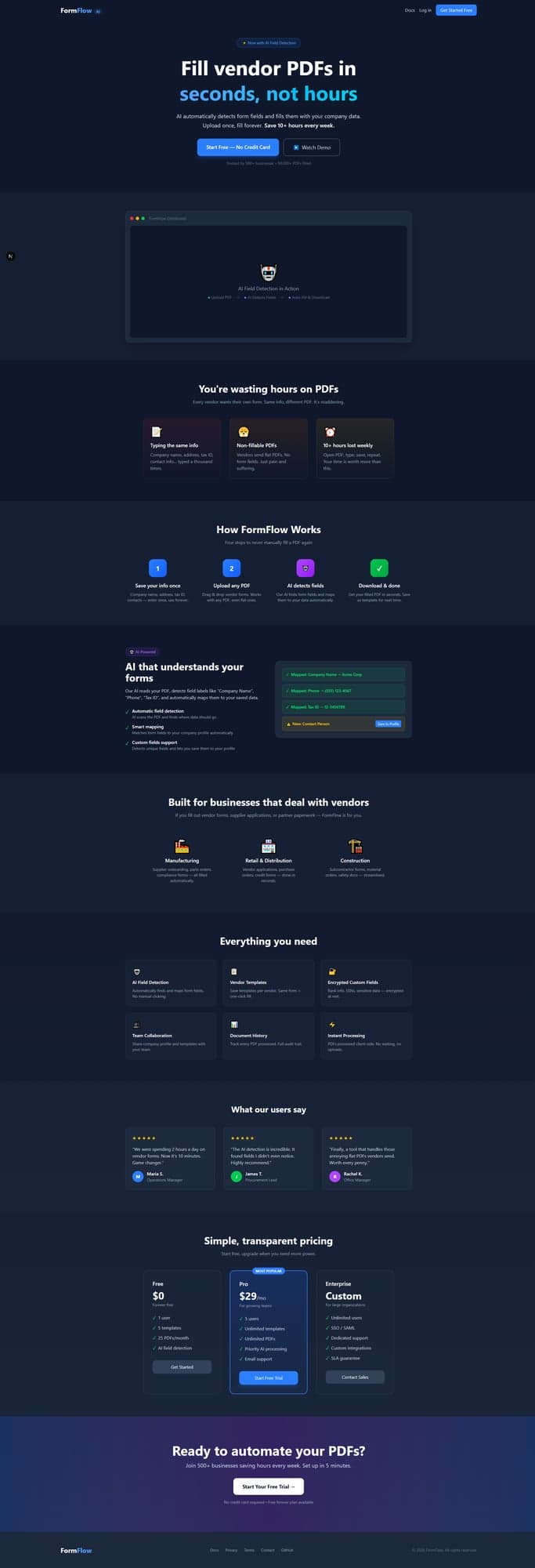
FormFlow landing page
2Creating an Account
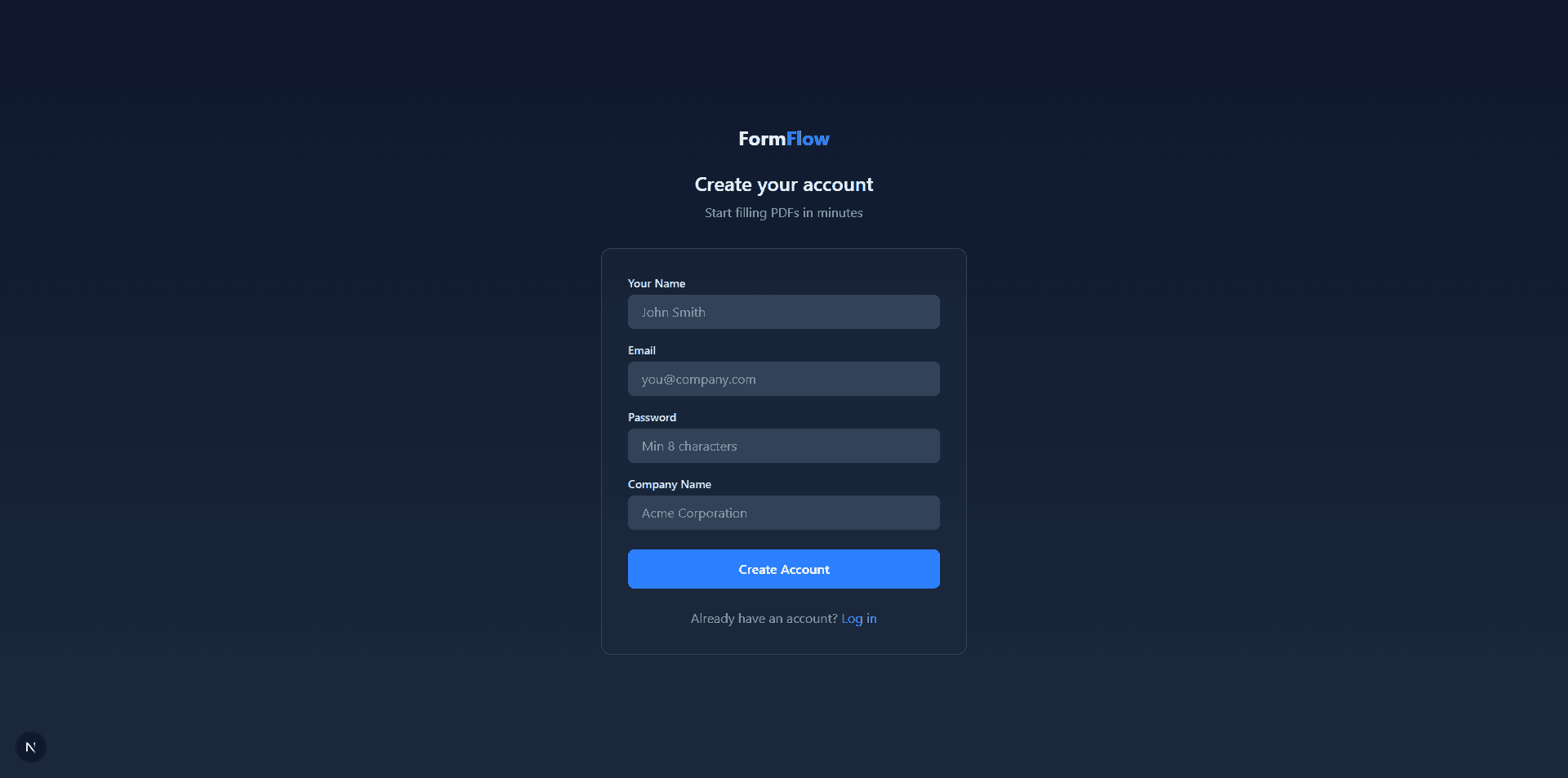
To start using FormFlow, you need to create a free account. The signup process is quick and simple:
- 1Click "Get Started" on the homepage
- 2Enter your name and email
- 3Create a password (min 8 characters)
- 4Enter your company name
- 5Click "Create Account"
Tip: Use your business email for better organization and team collaboration features.
3Dashboard Overview
After logging in, you'll see your dashboard. This is your home base for all FormFlow activities.
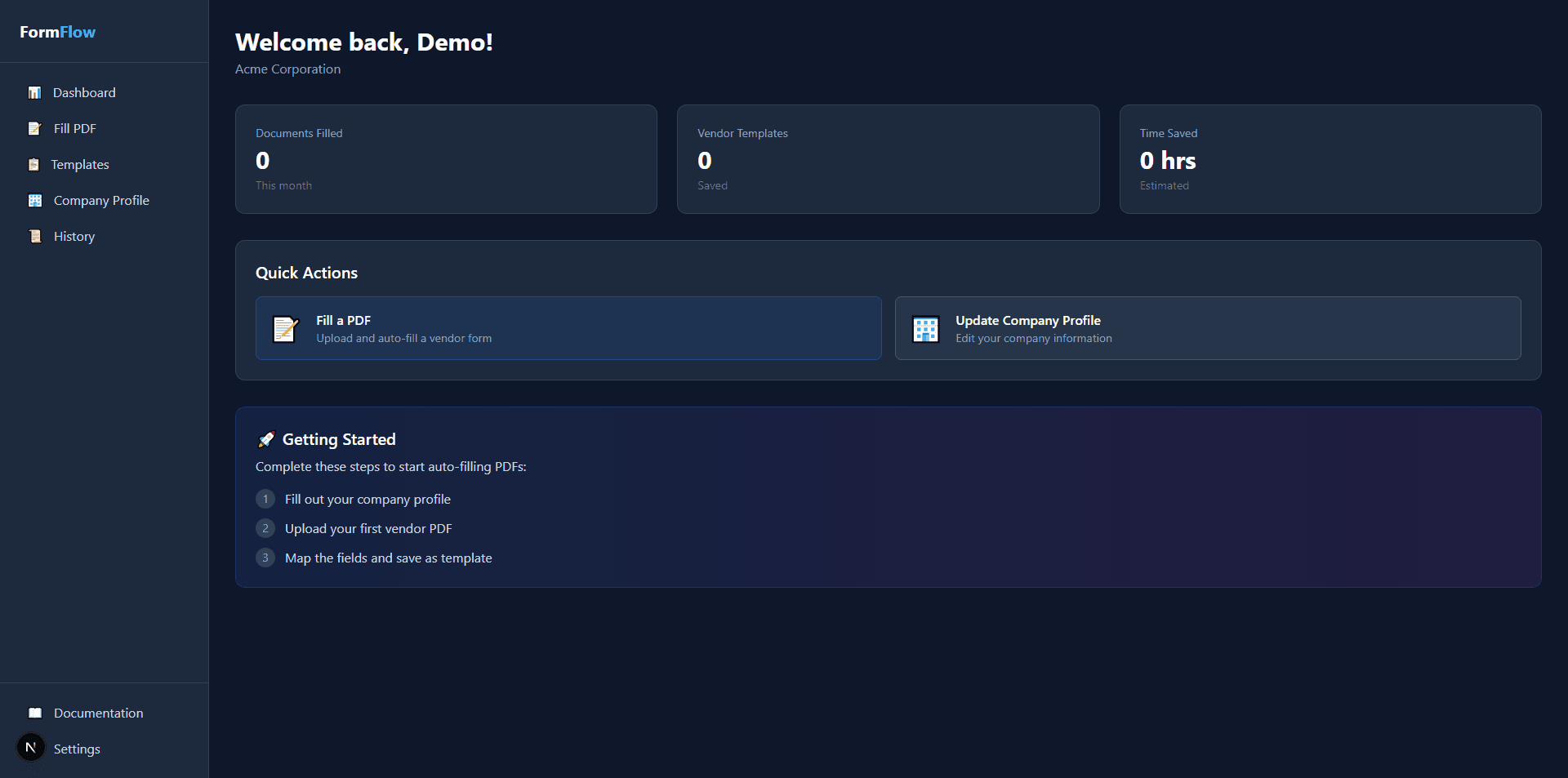
📊 Dashboard Stats
- Documents Filled — Total PDFs you've processed this month
- Vendor Templates — Number of saved templates
- Time Saved — Estimated hours saved using FormFlow
🧭 Navigation Sidebar
- Dashboard — Overview and quick actions
- Fill PDF — Upload and fill new PDFs
- Templates — Manage saved templates
- Company Profile — Your company information
- History — View processed documents
4Company Profile Setup
⚠️ Important: Fill out your Company Profile before filling PDFs! This information is what gets auto-filled into your forms.
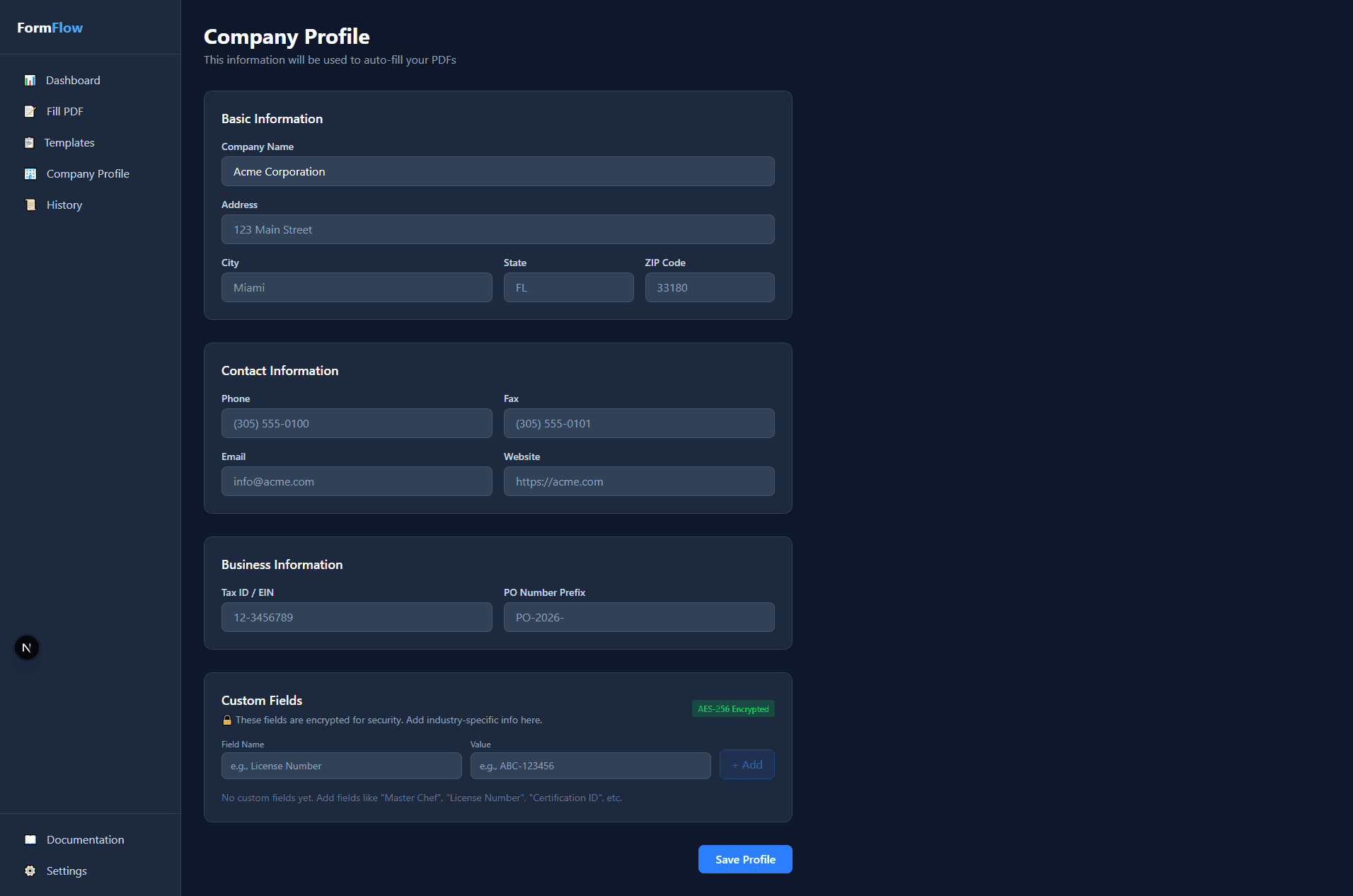
📍 Basic Information
- • Company Name
- • Street Address
- • City, State, ZIP
- • Country
📞 Contact Information
- • Phone Number
- • Fax Number
- • Email Address
- • Website URL
🏢 Business Information
- • Tax ID / EIN
- • PO Number Prefix
- • Custom Fields (encrypted)
🔐 Custom Fields
Add custom fields for information unique to your business — like Contact Person, Bank Account, License Number, etc. These fields are AES-256 encrypted for security.
5Filling a PDF
This is the core feature of FormFlow. Here's how to fill a vendor PDF step by step:
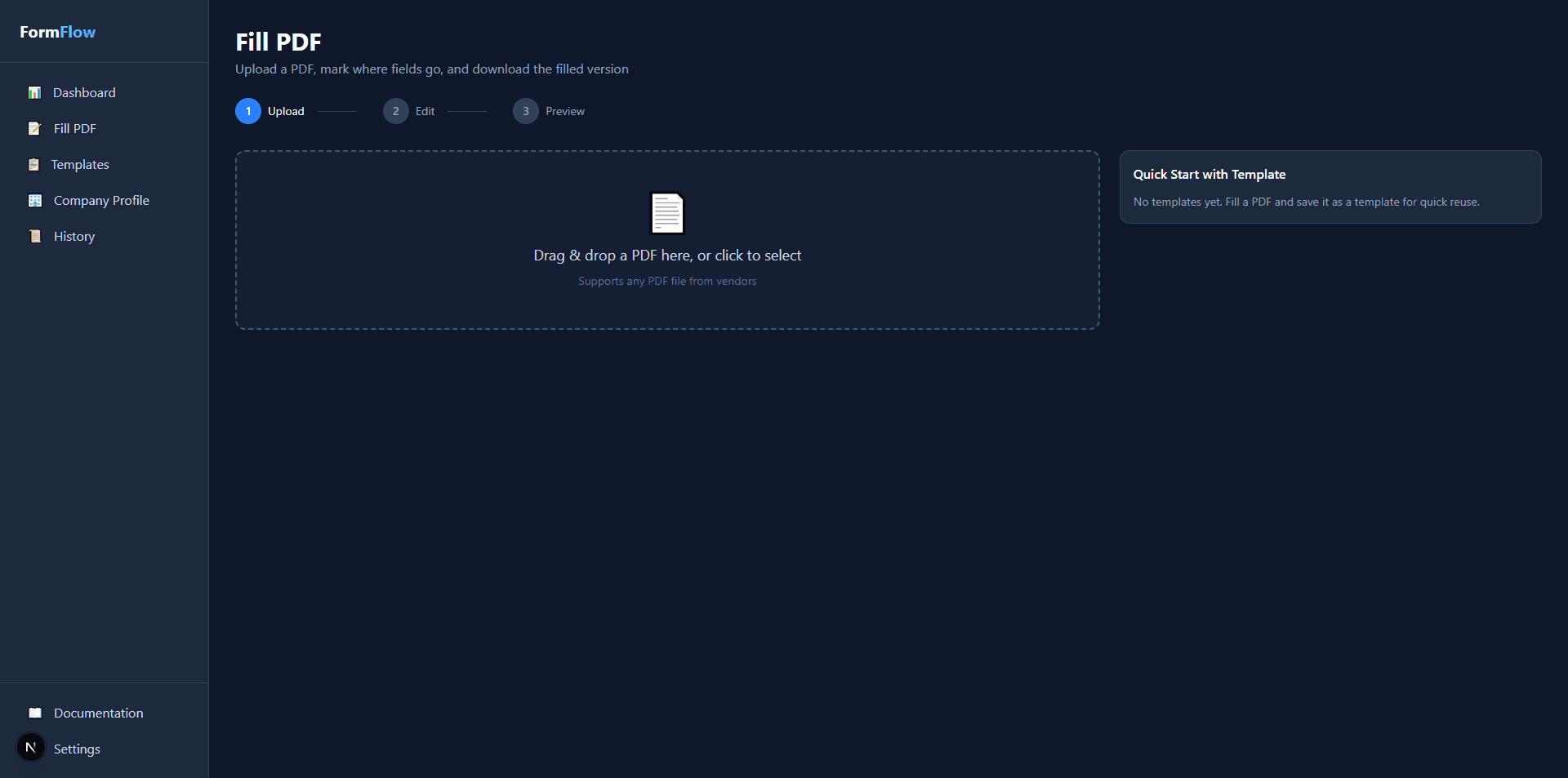
Step 1: Upload Your PDF
- 1.Go to Fill PDF from the sidebar
- 2.Drag & drop your PDF onto the upload area, or click to browse
- 3.Optionally, select a saved template from the sidebar if you've used this form before
Supported: Any PDF file. Works best with PDFs that have selectable text (not scanned images).
Step 2: Detect or Place Fields
After uploading, you have two options:
🤖 Option A: AI Detection (Recommended)
- 1. Click the "🔍 Detect Fields" button
- 2. Wait for AI to analyze the PDF (2-5 seconds)
- 3. Review the detected fields in the modal
- 4. Click "Add All Mapped Fields" or add individually
✋ Option B: Manual Placement
- 1. Select a field type from the dropdown
- 2. Click on the PDF where you want to place it
- 3. Repeat for all fields needed
- 4. Adjust font size with the slider
Step 3: Adjust Field Positions
Select
Click on a field to select it (turns blue)
Move
With field selected, click where you want to move it
Delete
Click the × button in the field list
Step 4: Generate & Download
- 1Click "✓ Generate & Preview"
- 2If you have "Per Order" fields (like PO Number), enter their values in the popup
- 3Review the preview to make sure everything looks correct
- 4Click "⬇️ Download Filled PDF"
6AI Field Detection
FormFlow's AI analyzes your PDF and automatically detects form field labels like "Company Name", "Phone", "Tax ID", etc. It then maps them to your saved company profile data.
✓ Mapped Fields
Fields that match your company profile. These auto-fill with your saved data.
⚠ Unmapped Fields
Fields detected that don't match existing profile fields. You have two options:
💡 Pro Tip: Save Unmapped Fields
When you see fields like "Contact Person" or "Bank Name", click "Save to Profile" to add them to your company profile. You can enter the value right then — it will auto-fill on all future forms!
7Managing Templates
Templates save the field positions for forms you use repeatedly. Once saved, you can fill the same type of form with one click.
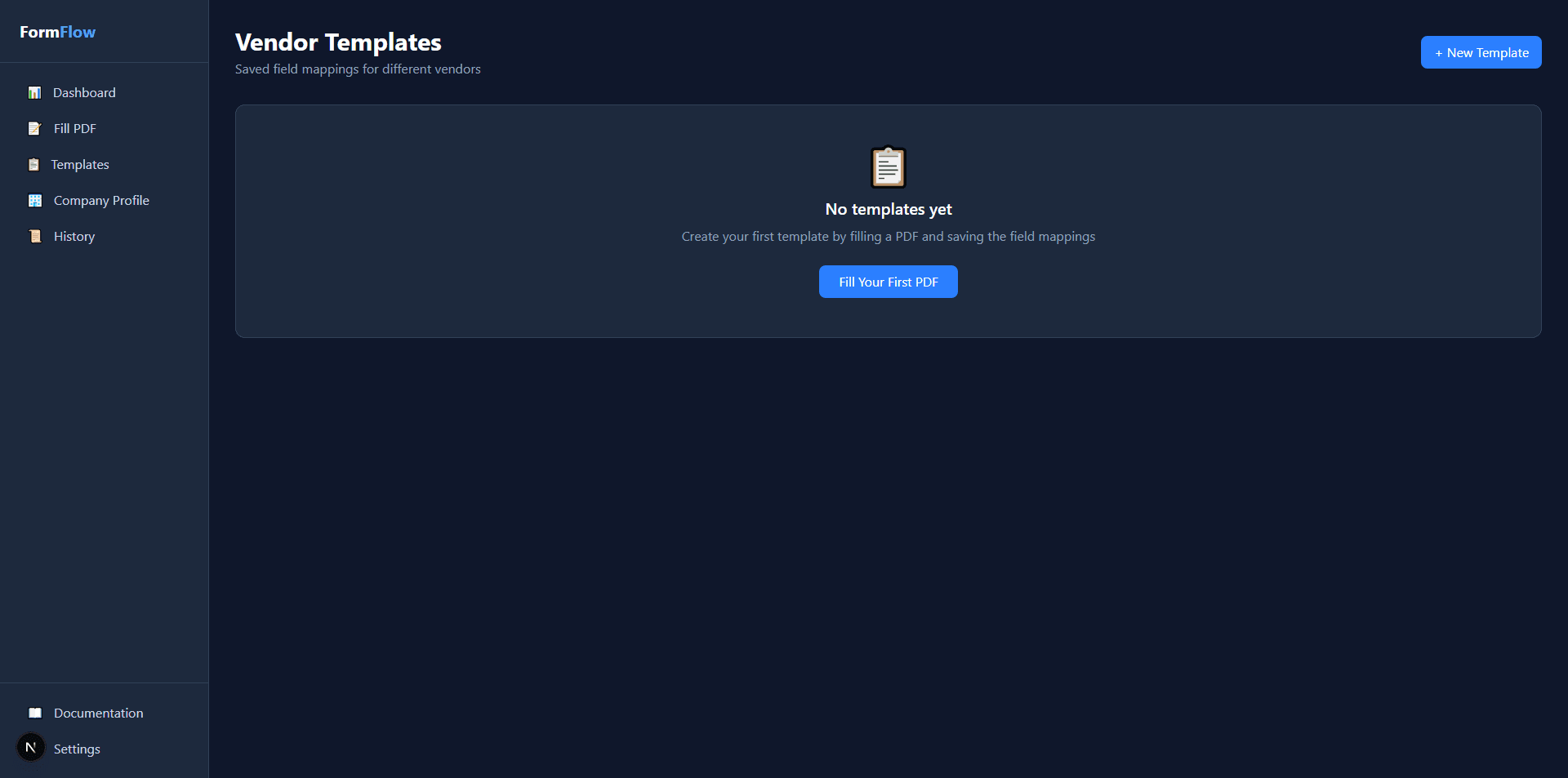
📝 Creating a Template
- 1. Fill a PDF and place all fields
- 2. Click "💾 Save Template"
- 3. Enter a name (e.g., "AutoZone Vendor Form")
- 4. Add an optional description
- 5. Click "Save Template"
🚀 Using a Template
- 1. Go to Fill PDF
- 2. Select your template from the sidebar
- 3. Upload the same type of PDF
- 4. All fields are pre-positioned!
- 5. Just generate and download
8Document History
Track all PDFs you've processed. Great for audit trails and finding past documents.
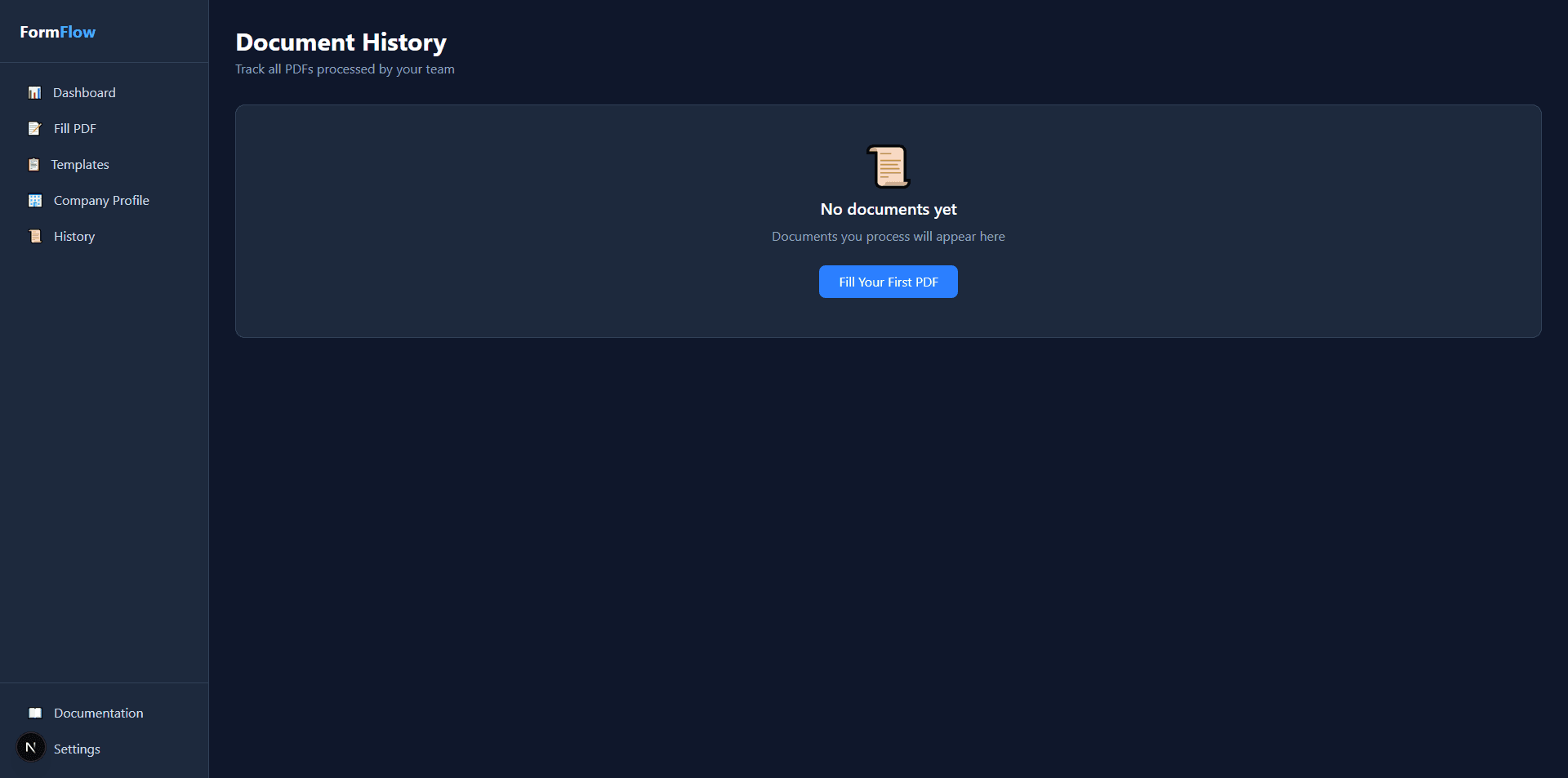
What's Tracked:
- • Original filename
- • Output filename
- • Date/time processed
- • Template used (if any)
9Field Types Explained
📗 Static Fields (Auto-filled)
These pull from your saved company profile:
📝 Dynamic Fields (Per Order)
You enter these each time you fill a form:
10Troubleshooting
❌ "No form fields detected"
- • The PDF might be image-based (scanned). Try a PDF with selectable text.
- • The PDF might have very little text content.
- • Try uploading a different PDF to verify the system works.
⚠️ Fields in wrong positions
- • AI placement is approximate — select and move fields to adjust.
- • Click a field to select it (turns blue), then click the correct position.
- • Adjust font size if text doesn't fit the form boxes.
🔍 Can't see custom fields
- • Make sure you saved them in Company Profile settings.
- • Refresh the page after adding new custom fields.
- • Check that you're looking in the correct dropdown group.
Still need help?
Our team is here to help you get the most out of FormFlow.